
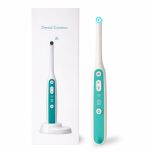
Oravall® Dental Camera
Kamera uživo s LED svjetlom i radijusom rotacije od 360 stupnjeva za otkrivanje plaka, zubnog kamenca, karijesa ili prljavštine na krajnicima
Kombinirani popust od 10%.
89,95 €
Na stanju
Naručeno danas, otpremljeno *danas
Besplatna dostava preko 60€
100% zajamčen povrat novca u roku od 30 dana
10+ godina iskustva
Kombinirajte i uštedite:
Kombinirani popust
12,90 €
1x
1x
Oravall® Dental Camera +
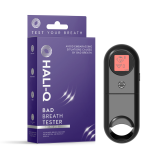
HaliQ tester lošeg zadaha HC212
128,95 €
-10%
116,05 €
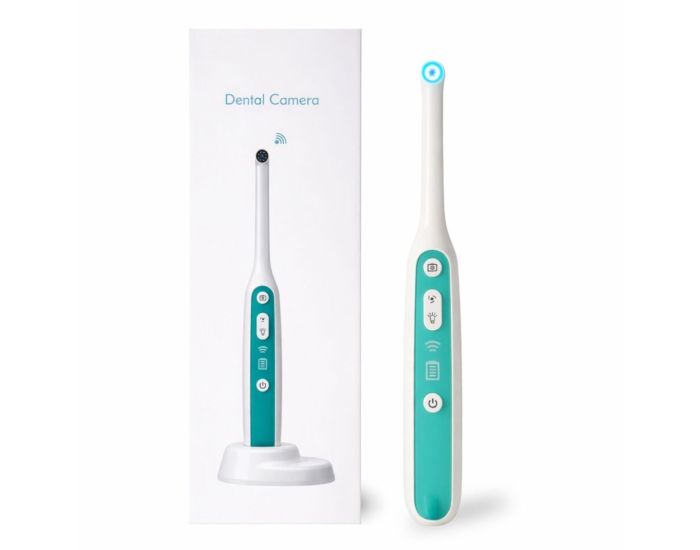
Oravall® Dental Camera with LED
Want to spot issues before the dentist does?
Plaque build-up, cavities, or tonsil stones often develop in places you can’t easily see yourself, such as behind your teeth, around the back molars, or in the throat.
With the Oravall® Dental Camera, you can see live what’s happening in the areas you normally miss, so build-up and early signs of decay don’t worsen unnoticed.
Why choose the Oravall® Dental Camera?
- LIVE VIEWING ON YOUR PHONE. The camera connects via Wi-Fi to an app on your phone, giving you a clear live view all the way to the back molars and into the throat. This gives you full control when inspecting or cleaning hard-to-see areas.
- SHARP, WELL-LIT IMAGE. With a 2-megapixel resolution and up to 150x magnification, even early plaque and small irregularities become visible, so you can take action in time. The 8 built-in LED lights ensure that even the darkest areas are clearly lit.
- ZOOM FUNCTION AND LED MODES. With the zoom function and adjustable LED settings on both the device and in the app, you can fine-tune the image to the exact area you’re viewing. Adjust brightness and focus for maximum precision and more targeted cleaning.
- PHOTOS AND VIDEOS FOR COMPARISON. You can save photos and videos and review them later or compare them with previous situations. In landscape mode, you can view the live image next to an earlier photo, making it easier to see whether an area is cleaner or still needs attention.
- EASY VIEWING IN DIFFICULT ANGLES. By rotating the image in the app, you can match the view to the angle you’re working at. This makes it easier to keep a stable view and move more accurately inside the mouth.
- SECURE GRIP DURING USE. The silicone anti-slip handle ensures the camera stays steady in your hand, even in a moist environment. This helps you move more precisely and reduces the chance of slipping while viewing.
- WIRELESS AND PRACTICAL TO USE. Thanks to the built-in 850 mAh battery, you can use the camera without cables and enjoy more freedom of movement while inspecting.
- EASY TO CLEAN AFTER USE. The lens is water-resistant and can be cleaned easily after use, helping you keep the product hygienic and ready for next time.
- 100% SATISFACTION GUARANTEE. We believe in the Oravall® Dental Camera. Not satisfied after two weeks? You’ll get your money back.
Instructions Oravall® Dental Camera
Use with smartphone
- App download:
Android: search for “ANESOK” in Google Play.
iOS: search for “ANESOK” in the App Store. - Turn the device on by holding the power button at the bottom for 3 seconds.
- Go to the Wi-Fi settings on your phone and connect to the network ANESOK-401-xxxx.
- Open the ANESOK app to view a live image of your mouth.
Buttons and camera functions
- Photo / video button (top)
Press briefly to take a photo. Press and hold for 3 seconds to start video recording. - Zoom button (middle)
Press briefly to switch between 1.0x, 1.5x and 2.0x magnification. The next press returns to 1.0x. - LED button (below the zoom)
Brightness can be set in four levels: 100%, 80%, 50%, 0%. - Power button (bottom)
Press and hold for 3 seconds to turn the device on or off.
Taking photos and videos
- Use the photo/video button as described above.
- Zoom in or out with the zoom button for details.
- Use the LED lights to make dark or hard-to-reach areas clearly visible.
- All photos and videos are automatically saved to your phone’s photo album.
App functions
- Rotate the screen (rotation) in the app for a better view.
- Adjust resolutions: 2560x1440, 1920x1080 or 1280x720.
- Choose between colour or black-and-white contrast.
- View battery status.
- Take photos and videos directly in the app.
- Zoom in or out on the image.
- View and manage saved files.
Use with computer
Windows
Download the software via www.inskam.com/download/camera.zip
- Connect the camera via USB-C.
- Turn the device on and hold the LED button for 3 seconds (Wi-Fi off).
- Start the Smart Camera software.
Mac
- Open Photo Booth.
- Connect the camera via USB-C.
- Turn the device on and hold the LED button for 3 seconds.
- Select USB Camera in the software.
Charging
- Use an adapter of 5V and 500mA to 1A.
- Charging time is approximately 2 hours.
- Indicators: red = charging, green = fully charged.
Safe use
- Start on the lowest setting and keep the camera on each contact point in the mouth for a maximum of 5 seconds.
- Take a 15-second break between checks.
- Not suitable for children under 12 without supervision.
- Use only for inspection and checking of the mouth and throat.
Cleaning and maintenance
- The lens is water-resistant (IP67). Clean carefully with lukewarm water or a mild disinfectant.
- Dry completely after use before storing the device.
Troubleshooting
- Blurry image: clean the lens with a cotton swab and water or alcohol.
- Won’t turn on: fully charge the device.
- App not working properly: restart the app or free up storage on your phone.
- No light: restart the device.
- Red flashing: fully charge first.
- No live image: reconnect Wi-Fi and restart the app.
- Unstable Wi-Fi: restart the device and reconnect.
What’s included in the Oravall® Dental Camera set
- Oravall Dental Camera
- USB-C charging cable
- 5V/1A USB adapter
- Manual / user guide
Key specifications
- Camera: HD CMOS sensor
- Resolution: 2560 × 1440P
- Framerate: 25 fps
- Viewing angle: 70°
- LED: 8 adjustable lights
- Battery: 850 mAh lithium, approx. 2 hours of use
- Water resistance: IP67 (lens only)
- Wi-Fi: IEEE 802.11 b/g/n, 2.4 GHz
- Temperature range: 0°C – 45°C
Tonsil Stones
Clean tonsils in 6 steps
- Clean the tonsils by suctioning the crypts using the Oral Icon Electric Tonsil Stone Remover
- Apply the Oramarie Tonsil Clean Serum to the tonsils
- Clean the nasal and throat cavities with Xinusactiv Fresh Breath Nasal Sinus Drops
- Brush your teeth and rinse your throat with the Ryttpro Tonsil Stone Removal Kit
- Clean your tongue with the JuliBrite Tongue Clean Kit
- Keep the mouth hydrated with Moist-r Dry Mouth Spray and Oramarie Probiotic Chewing Gum
Strong Gums
Stronger gums in 6 steps
- Have tartar below the gumline removed by a dental hygienist or dentist
- Maintain this once every 2 months with the Oral Icon electric tartar remover
- Brush and rinse your mouth with OZ-3X or energized oxygen formulas such as JuliBrite and Ryttpro
- Clean the gumline daily with the Oral Icon Water Flosser
- Massage the gums with a gum massager to improve circulation
- Chew Oramarie Probiotic Chewing Gum at least twice a day to support a balanced oral microbiota and a healthy mouth
Bad Breath
Fresh breath in 6 steps
- Brush and rinse the mouth and throat with a formula based on energized oxygen, xylizinc, and hyaluronan such as JuliBrite
- Clean the tonsils with Oramarie Tonsil Serum and Tonsilclin MCX11
- Clean the nasal cavities with Xinusactiv Fresh Breath Nasal Drops
- Clean below the gumline with the Oral Icon Water Flosser
- Clean the tongue with the JuliBrite Tongue Clean Kit and Bergenfeld Tongue Care Serum
- Hydrate the mouth with Oramarie probiotic chewing gum and Moist-r Mouth Spray
Frequently Asked Questions about the Oravall® Dental Camera
- How do I connect the Oravall® Dental Camera to my smartphone?
Download the ANESOK app via Google Play (Android) or the App Store (iOS). Turn on the camera by holding the power button for three seconds, go to the Wi-Fi settings on your phone, connect to the network ANESOK-401-xxxx, and open the app to view the live feed. - How do I take a photo or video with the Oravall® Dental Camera?
Press the photo/video button on top of the camera briefly to take a photo. Hold the button for three seconds to start recording a video. The files are automatically saved to your phone’s photo gallery. - How do I use the zoom function and LED light?
Press the zoom button briefly to switch between 1.0x, 1.5x, and 2.0x magnification. Use the LED button below the zoom button to adjust brightness in steps (100%, 80%, 50%, 0%) depending on lighting conditions inside the mouth. - How do I charge the Oravall® Dental Camera and how long does the battery last?
Connect the camera using the included USB-C cable and use a 5V/1A adapter. A full charge takes approximately 2 hours and provides around 2 hours of use. The battery indicator shows: blinking red = low battery, solid red = charging, solid green = fully charged. - How do I clean the Oravall® Dental Camera and is it waterproof?
The lens is water-resistant (IP67). Clean it carefully with lukewarm water or a mild disinfectant. The device itself is not fully waterproof, so do not fully submerge it. Make sure the device is completely dry before storing it.
Napišite recenziju
Slični proizvodi